

 API key expiration controls how long API tokens remain valid. Use API key expiration to reduce long-lived credentials and support internal security and compliance requirements.
API key expiration applies to the following:
API key expiration controls how long API tokens remain valid. Use API key expiration to reduce long-lived credentials and support internal security and compliance requirements.
API key expiration applies to the following:
Before you begin
This is a SpecterOps-managed feature. If it is not enabled in your environment, contact your account team for assistance.
- API key expiration is not enabled by default and must be turned on by a user with the Administrator role in BloodHound.
- Only users with the Administrator role can configure API key expiration.
- After enabling API key expiration, all existing and new API keys will be set to expire based on the configured rotation period.
- BloodHound does not send API key expiration notifications.
- Organizations should plan manual key rotation and internal expiration notifications for all integrations and collector clients before changing this setting.
Configure
The following table summarizes how API key expiration settings and actions affect API tokens:
To enable and configure API key expiration:
1
Navigate to the configuration
- Log in to BloodHound as a user with the Administrator role.
- In the left menu, click Administration > BloodHound Configuration.
2
Enable API key expiration
Toggle the setting for API key expiration.
3
Set the rotation period for API keys
Enter the number of days (between 1 and 365) for API keys to remain valid.This value applies to existing and new keys.
4
Save changes and confirm modal
Click Save Settings and confirm the modal that appears, which explains how existing keys will be affected by this change.
Rotate keys
After API key expiration is enabled, Administrators must manually rotate keys before they expire to maintain uninterrupted access to the BloodHound API. This involves regenerating API tokens and updating any integrations or collector clients that use the expiring keys with the new credentials. Administrators can monitor expiration dates in the Manage Clients page for collector clients and in the API Key Management page for personal and non-personal API tokens.Personal/non-personal API tokens
Administrators can rotate personal and non-personal API tokens for all users from the Manage Users page.Users can also rotate their own personal API tokens from the API Key Management page in their profile settings.
1
Navigate to Manage Users
- Log in to your BloodHound tenant as a user with the Administrator role.
- In the left menu, click Administration > Manage Users.
2
Regenerate an API token
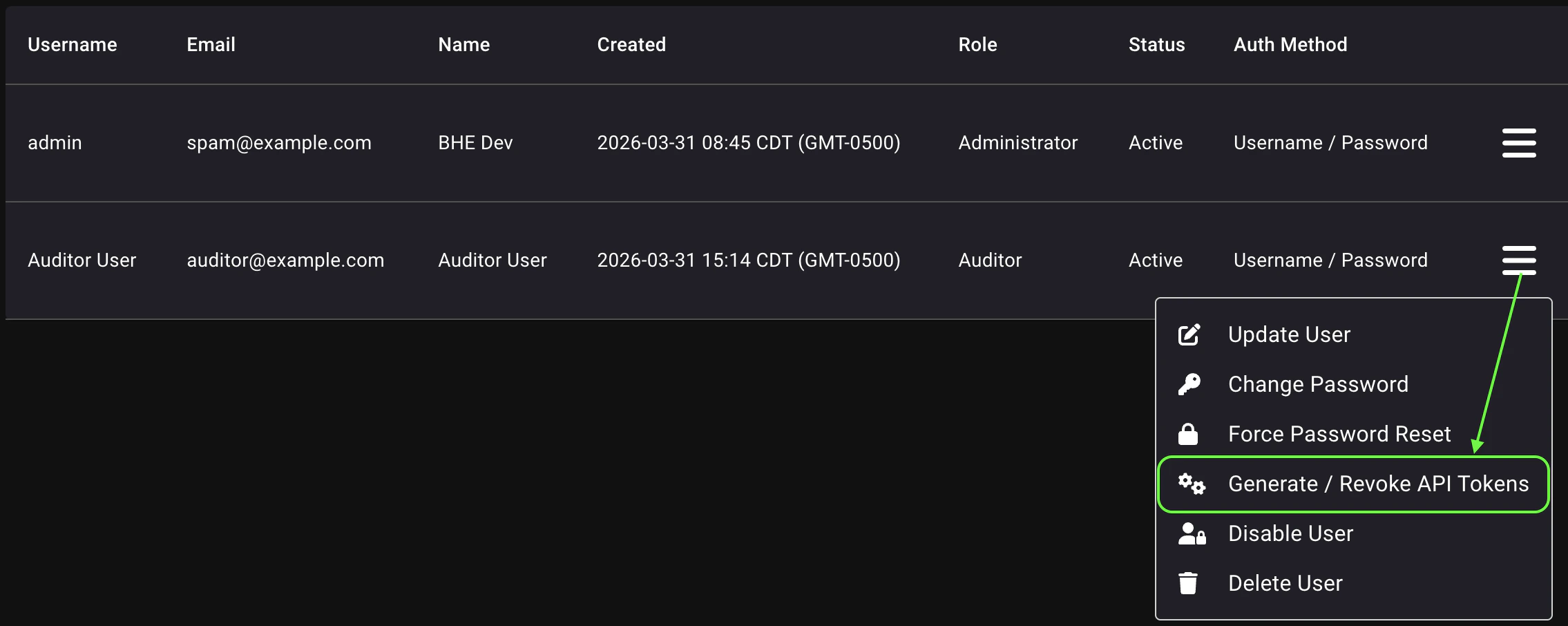
- Find the user account associated with the expiring API token.
-
Click the hamburger menu and select Generate / Revoke API Tokens.
- Click Create Token, give it a descriptive name, and click Save.
- Save the API token and token ID in a secure location (for example, a secrets manager or enterprise password vault) and click Close.
- Update the dependent integration configuration with the new API token and token ID.
Collector client API tokens
Administrators can rotate API tokens for collector clients from the Manage Clients page.1
Navigate to Manage Clients
- Log in to your BloodHound tenant as a user with the Administrator role.
- In the left menu, click Administration > Manage Clients.
2
Regenerate an API token
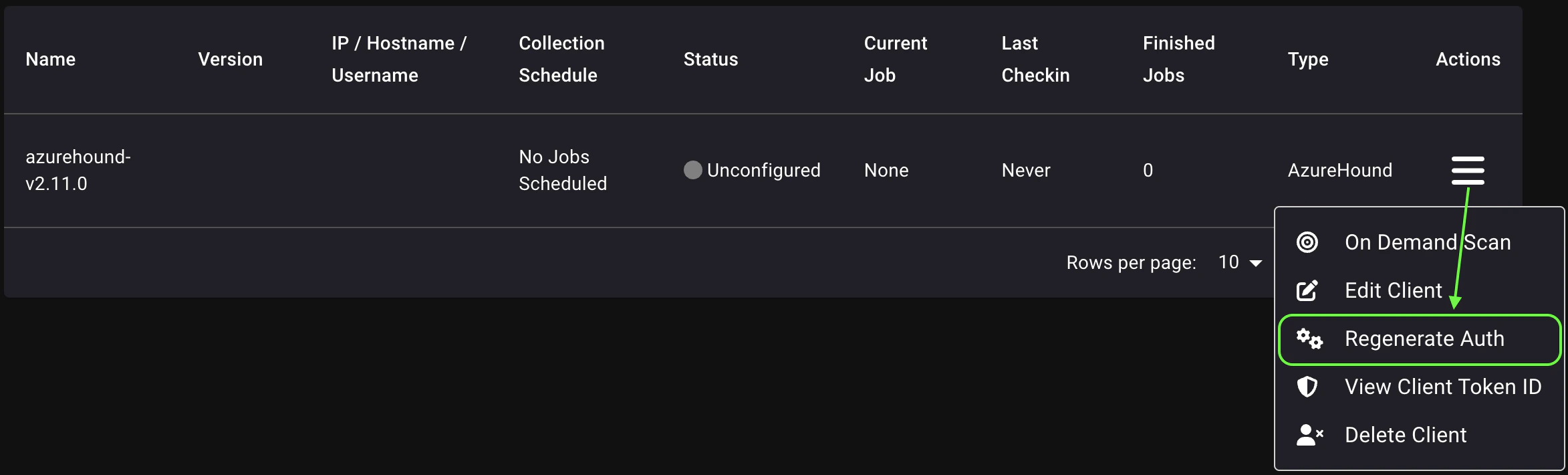
- Find the collector client associated with the expiring API token.
-
Click the hamburger menu and select Regenerate Auth.
- Confirm the modal that appears, which explains that regenerating authentication invalidates the current client credentials.
- Save the API token and token ID in a secure location (for example, a secrets manager or enterprise password vault). Do not store these values in cleartext files. Then click Close.
- Update the dependent AzureHound, SharpHound, or OpenHound configuration with the new API token and token ID.