> ## Documentation Index
> Fetch the complete documentation index at: https://specterops-bed-7559-api-key-exp.mintlify.site/llms.txt
> Use this file to discover all available pages before exploring further.
# Graph Structure
> Learn how to manage the structures that model your OpenGraph data in BloodHound.
 OpenGraph extensions expand BloodHound's ability to map attack paths beyond Microsoft platforms to other identity providers, developer infrastructure, and device management platforms. For example:
Model GitHub organizations, identities, repositories, workflows, secrets, roles, and related relationships as graph data.
Model Jamf devices, users, groups, policies, and related relationships as graph data.
Model Okta users, groups, applications, roles, and related relationships as graph data.
See the [OpenGraph Library](/opengraph/library) for a list of more OpenGraph extensions and collectors.
*How* extensions structure data has important implications for how you explore and analyze it in BloodHound. It's important to understand the differences between **generic** and **structured** graphs and how to manage extensions effectively.
## Generic graphs
When OpenGraph was introduced in BloodHound v8.0.0, it required data payloads to conform to the basic node, edge, and metadata format only and produced **generic graphs** to support basic exploration through Cypher queries (and later, node search).
This enabled rapid iteration and flexibility for early OpenGraph extensions. However, it also meant that OpenGraph data was not integrated with other BloodHound features and capabilities.
## Structured graphs
Extension developers can now create **extension bundles** to enable enhanced features and capabilities for OpenGraph data.
Currently, an extension bundle consists of the extension definition schema only. In a future release, extension bundles will include additional components.
After you install an extension *and* upload a data payload that conforms to the extension definition schema, BloodHound produces a **structured graph** that provides enhanced features compared to generic graphs, such as:
| Feature | Structured | Generic | Release Status |
| --------------------------------------- | :-----------------------------------------------------------: | :-----------------------------------------------------------: | ---------------------------------------------------------- |
| Node search | | | Structured: Early access
OpenGraph extensions expand BloodHound's ability to map attack paths beyond Microsoft platforms to other identity providers, developer infrastructure, and device management platforms. For example:
Model GitHub organizations, identities, repositories, workflows, secrets, roles, and related relationships as graph data.
Model Jamf devices, users, groups, policies, and related relationships as graph data.
Model Okta users, groups, applications, roles, and related relationships as graph data.
See the [OpenGraph Library](/opengraph/library) for a list of more OpenGraph extensions and collectors.
*How* extensions structure data has important implications for how you explore and analyze it in BloodHound. It's important to understand the differences between **generic** and **structured** graphs and how to manage extensions effectively.
## Generic graphs
When OpenGraph was introduced in BloodHound v8.0.0, it required data payloads to conform to the basic node, edge, and metadata format only and produced **generic graphs** to support basic exploration through Cypher queries (and later, node search).
This enabled rapid iteration and flexibility for early OpenGraph extensions. However, it also meant that OpenGraph data was not integrated with other BloodHound features and capabilities.
## Structured graphs
Extension developers can now create **extension bundles** to enable enhanced features and capabilities for OpenGraph data.
Currently, an extension bundle consists of the extension definition schema only. In a future release, extension bundles will include additional components.
After you install an extension *and* upload a data payload that conforms to the extension definition schema, BloodHound produces a **structured graph** that provides enhanced features compared to generic graphs, such as:
| Feature | Structured | Generic | Release Status |
| --------------------------------------- | :-----------------------------------------------------------: | :-----------------------------------------------------------: | ---------------------------------------------------------- |
| Node search | | | Structured: Early access
Generic: Generally available |
| Cypher search | | | Structured: Early access
Generic: Generally available |
| Bulk data removal | | | Structured: Early access
Generic: Generally available |
| Pathfinding | | | Early access |
| Relationship-based findings1 | | | Coming soon |
| Remediations1 | | | Coming soon |
| Posture metrics2 | | | Coming soon |
1 Extensions that include findings and remediations work in both Community and Enterprise, but are visible in Enterprise only.
2 Posture metrics are available in Enterprise only.
## Key terms
See the following table for important terms and definitions related to OpenGraph extensions:
| Term | Definition |
| ------------------------------- | ---------------------------------------------------------------------------------------------------------------------------------------------------------------------------------------------------------------------------------------------------------------------------------------------------- |
| **Collector** | A tool (for example, OpenHound CLI, AzureHound, or SharpHound) that authenticates to a third-party platform, collects the data of interest, and packages it into a standardized data payload that BloodHound can ingest. |
| **Collector client** | A BloodHound Enterprise component that orchestrates collector runs and can submit payloads directly through the BloodHound API. |
| **Data payload** | The formatted data generated by an OpenGraph collector that is provided to BloodHound for ingest. |
| **Extension** | A modular collection of OpenGraph components, including an extension definition schema, collector, Cypher saved queries, Privilege Zone rules, and findings. |
| **Extension definition schema** | A file that defines an extension's structure, including node types, edge types, and visual configurations. Enables BloodHound to validate incoming data payloads and produce structured graphs. Both BloodHound Community and BloodHound Enterprise use the same extension definition schema format. |
| **Generic graph** | OpenGraph data conforming to the basic node, edge, and metadata format required for a data payload, with no associated extension definition schema. |
| **Structured graph** | OpenGraph data conforming to the basic node, edge, and metadata format required for a data payload *and* associated with an installed extension definition schema. Structured graphs are fully integrated with BloodHound's features and functionality. |
## Manage extensions
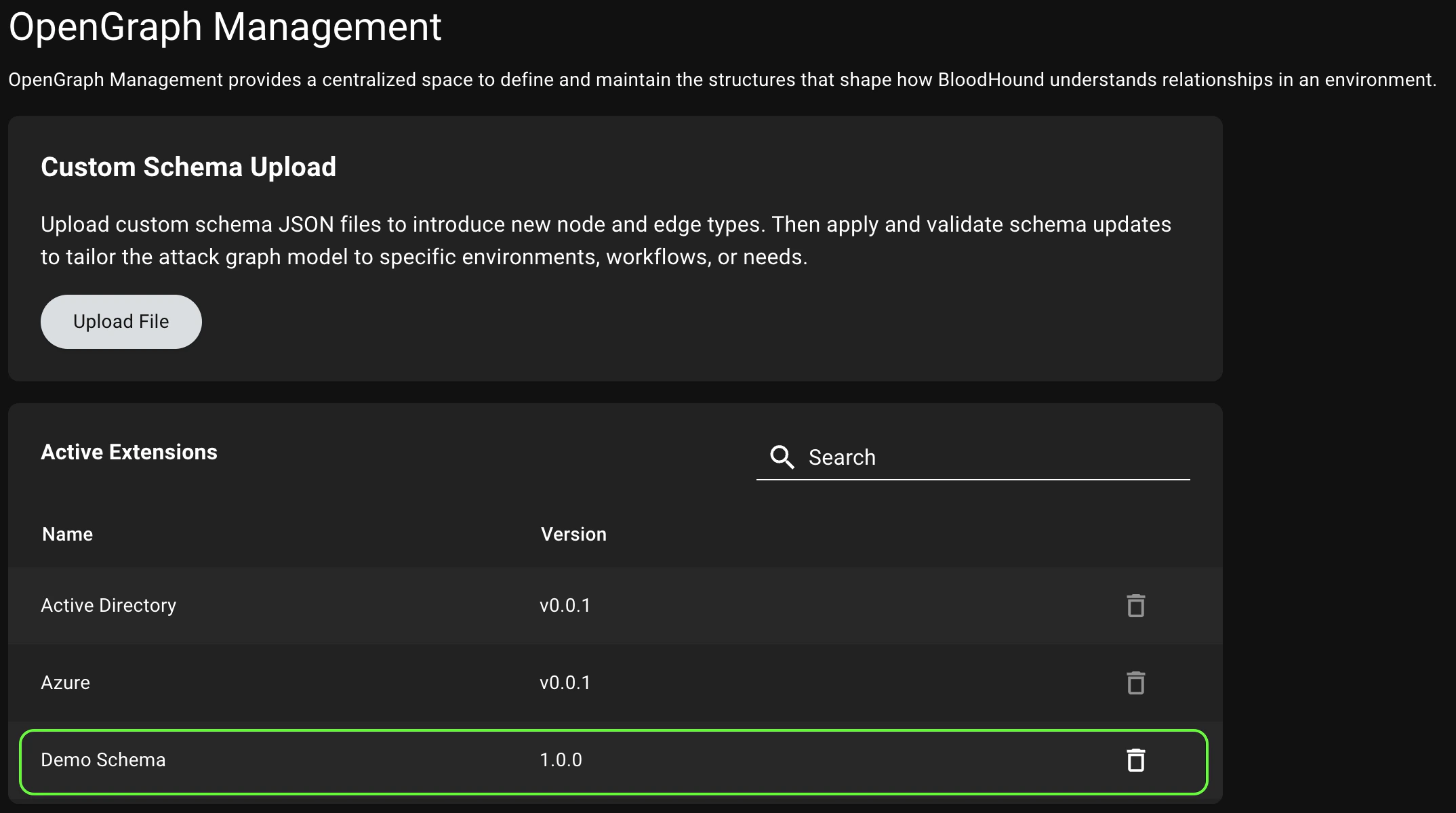
Use the **OpenGraph Management** page in BloodHound to install new extensions, view active extensions, and delete extensions that you no longer need.
Only users with the Administrator [role](/manage-bloodhound/auth/users-and-roles#user-role-definitions) can manage extensions.
### Before you begin
Complete the following steps before installing an extension or uploading structured graph data:
Ensure the OpenGraph Extension Management feature is enabled before you continue.
Enable this feature on the **Administration** > **Early Access Features** page.
Support for extension-defined **Findings** in BloodHound Enterprise is a SpecterOps-managed feature. If it is not enabled in your environment, contact your account team for assistance.
How you obtain extensions and collectors depends on your BloodHound edition and how they are distributed:
* **BloodHound Community**: Users can download and use publicly available extensions and collectors from GitHub repositories.
* **BloodHound Enterprise**: Customers can use publicly available extensions and collectors. Customers may also acquire official SpecterOps-provided extensions; contact your account team for availability.
After you obtain an extension and collector, review the prerequisites in the extension-specific setup documentation.
For [OpenHound](/openhound/overview)-based collectors (GitHub, Jamf, and Okta), review edition-specific deployment information (Enterprise or Community) and the collector-specific documentation for details on permissions, platform API configuration, and deployment options.
### Workflow
The workflow for generic and structured OpenGraph data is largely the same. The main difference is that structured graphs require an Administrator to install the extension during initial setup. After that, Administrators and users follow the same recurring cycle to keep extension data current and use it in BloodHound.
For [OpenHound](/openhound/overview) collectors (GitHub, Jamf, and Okta), upload behavior depends on both deployment model and BloodHound edition. Only BloodHound Enterprise can accept payloads directly through the API. BloodHound Community requires manual file upload.
#### Initial setup
The following diagram provides a high-level overview of the recommended workflow to prepare BloodHound for producing structured graphs from OpenGraph extensions.
The initial setup workflow is not strictly linear and not all steps are required. For example, importing Saved Queries and creating extension-specific Privilege Zone rules are optional.
For generic graphs, the workflow is minimal: users may optionally import Saved Queries (if any). Installing an extension definition schema and updating Privilege Zone rules is not required.
```mermaid theme={null}
flowchart TB
subgraph prepare[Configure and Run]
a["Download extension
and collector"]
a-->b["Configure
collector"]
b-->c["Run
collector"]
end
subgraph upload[Install Extension]
f["Install extension
definition schema"]
f-->g["Import Cypher
saved queries"]
g-->h["Update Privilege
Zone rules"]
end
prepare-->upload
```
#### Operational cycle
After initial setup, the following diagrams illustrate the recurring cycle of operations to keep extension data current.
For OpenHound collectors, upload behavior depends on edition and runtime model: Enterprise can ingest through the API (often automatic when using a collector client), while Community requires manual file upload from locally run collector executables.
The following diagrams illustrate the OpenHound workflow for both Enterprise and Community editions.
**BloodHound Enterprise (containerized)**
```mermaid theme={null}
sequenceDiagram
autonumber
box rgba(128, 128, 128, 0.14) Human actors
actor Admin
actor User
end
box rgba(96, 96, 96, 0.12) Systems
participant CollectorClient as BHE Collector Client
participant OpenHound as OpenHound Container
participant TargetPlatform as Target Platform
participant BloodHound
end
Admin->>CollectorClient: Run on demand or configure schedule
CollectorClient->>OpenHound: Trigger collector job
OpenHound->>TargetPlatform: Extract data
TargetPlatform-->>OpenHound: Return source data
OpenHound->>OpenHound: Normalize and load data
OpenHound->>BloodHound: Auto-upload data payload
BloodHound-->>CollectorClient: Ingest complete
User->>BloodHound: Explore and analyze data
```
**BloodHound Community (CLI)**
```mermaid theme={null}
sequenceDiagram
autonumber
box rgba(128, 128, 128, 0.14) Human actors
actor Admin
actor User
end
box rgba(96, 96, 96, 0.12) Systems
participant OpenHound as OpenHound CLI
participant TargetPlatform as Target Platform
participant BloodHound
end
Admin->>OpenHound: Run openhound CLI
OpenHound->>TargetPlatform: Extract data
TargetPlatform-->>OpenHound: Return source data
OpenHound->>OpenHound: Normalize and load data
OpenHound-->>Admin: Generate data files locally
Admin->>BloodHound: Upload data files
BloodHound-->>Admin: Ingest complete
User->>BloodHound: Explore and analyze data
```
### Install an extension
Installing an extension involves uploading the extension definition schema to BloodHound, which validates the schema and makes it available for use with compatible data payloads.
After installing, BloodHound produces structured graphs for data payloads that conform to the extension.
In the left menu, click **Administration** > **OpenGraph Management**.
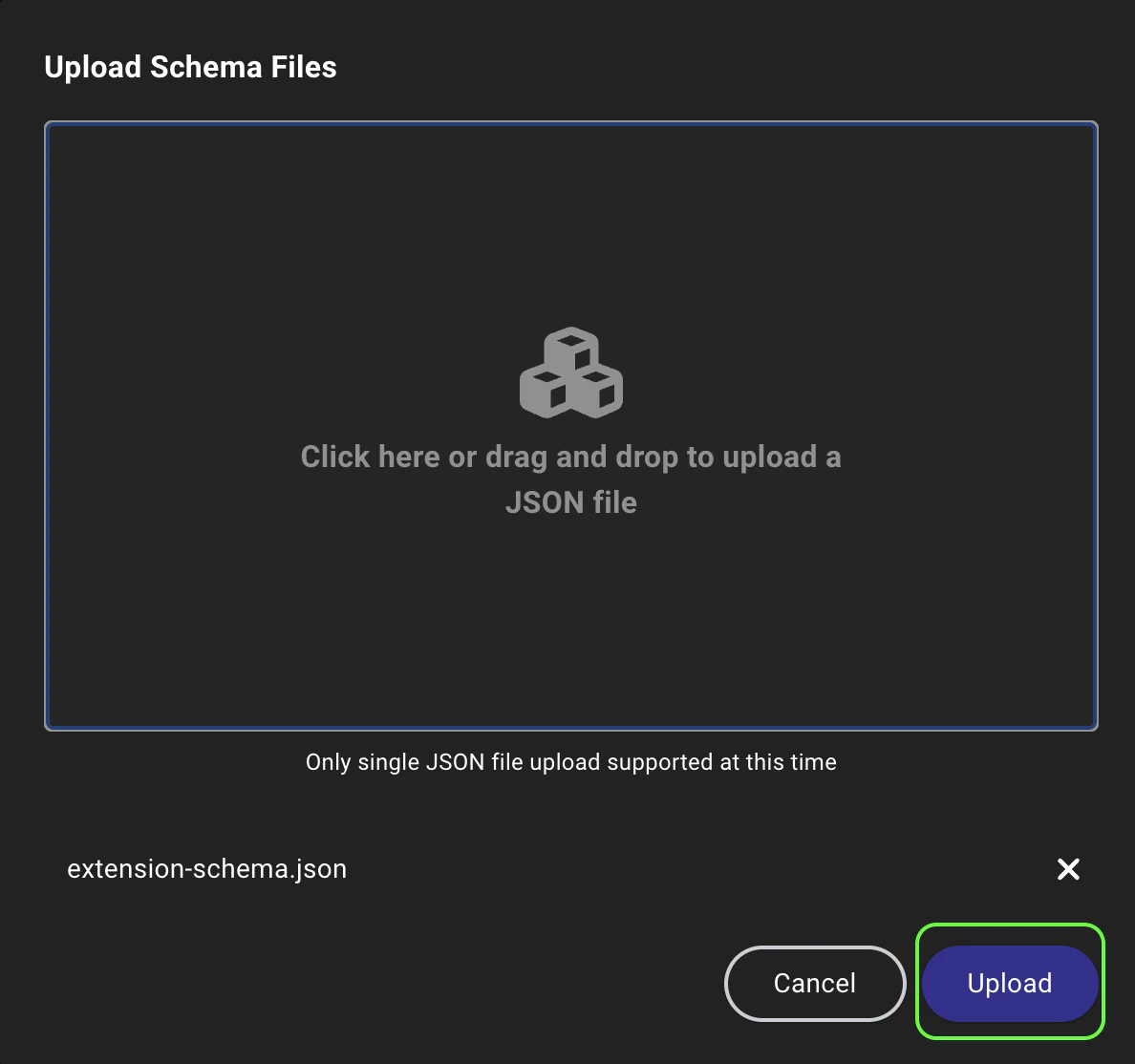
1. Click **Upload File** to open a file system dialog or drag and drop an extension definition schema file onto the canvas.
2. Click **Upload** to begin the schema installation and validation process.
 Confirm the extension appears in the list of active extensions.
You may need to refresh the page to see the newly installed extension in the list of active extensions.
Confirm the extension appears in the list of active extensions.
You may need to refresh the page to see the newly installed extension in the list of active extensions.
 ### Update an extension
Collectors and extensions are versioned separately to allow for more flexible updates, but this requires coordination to maintain compatibility and support. Follow these guidelines for managing updates:
* Do not update collectors independently without confirming extension definition schema compatibility.
* Update collectors and extension definition schemas together whenever possible.
* If you use SpecterOps-provided extensions or collectors, coordinate update cycles with your account team.
To update an extension, upload the new version using the same process as installing a new extension. BloodHound validates the new extension definition schema and replaces the old version with the new one.
### Delete an extension
Deleting an extension removes the extension definition schema from BloodHound, but leaves the underlying data intact. Associated data reverts to generic graphs—structured graph capabilities are no longer available—but you can still use node search and Cypher queries on the [Explore](/analyze-data/explore/search#search) page to explore the data.
If you want to delete the data associated with an extension, you can do so separately on the **Database Management** page.
To delete an extension, click the (trash) icon next to it in the list of active extensions and confirm the deletion in the prompt.
You cannot delete built-in extensions that come with BloodHound, but you can delete custom extensions that you have installed.
## Upload data
After an Administrator installs an extension, users can upload data payloads that conform to the extension definition schema and take advantage of structured graph capabilities in BloodHound.
For extensions that use OpenHound collectors (GitHub, Jamf, and Okta), AzureHound, or SharpHound, how data is uploaded depends on your BloodHound edition:
* **BloodHound Enterprise**: The collector client can upload data directly through the API. In containerized deployments, upload is typically automatic.
* **BloodHound Community**: After running the OpenHound, AzureHound, or SharpHound collector executables locally and generating data files, follow the manual upload steps below.
For extensions that do not use OpenHound collectors, follow the manual upload steps below.
Upload a data payload that conforms to the installed extension definition schema.
1. In the left menu, click **Quick Upload**.
2. Click the **Upload File** canvas to open a file system dialog or drag and drop the data payload file(s) onto the canvas.
3. Click **Upload** to begin the data ingestion and validation process.
The file either uploads successfully or fails in the modal. You can then go to the [File Ingest](/collect-data/enterprise-collection/monitor#file-ingest) page to review ingest and analysis progress.
Use the enhanced features enabled by the extension to explore and analyze your OpenGraph data in BloodHound.
| Feature | Description |
| ------------------------ | ---------------------------------------------------------------------------------------------------------------------------------------------------------------------------------------------------------------------------------------------------------- |
| Pathfinding | Use [Pathfinding](/analyze-data/explore/search#pathfinding) to identify attack paths and analyze relationships across all platforms and environments, including both built-in and custom extensions. |
| Saved queries | [Import](/analyze-data/explore/cypher-search#import-and-export) extension-specific saved queries so you can quickly run pre-defined Cypher queries on the **Explore** page. |
| Privilege Zone rules | If your Administrator configured extension-specific Privilege Zone [rules](/analyze-data/privilege-zones/rules) during initial setup, BloodHound automatically assigns matching nodes to zones, giving you clearer prioritization and zone-aware analysis. |
| Findings and remediation | When available, use findings and remediation information to prioritize and address issues in your environment. |
### Update an extension
Collectors and extensions are versioned separately to allow for more flexible updates, but this requires coordination to maintain compatibility and support. Follow these guidelines for managing updates:
* Do not update collectors independently without confirming extension definition schema compatibility.
* Update collectors and extension definition schemas together whenever possible.
* If you use SpecterOps-provided extensions or collectors, coordinate update cycles with your account team.
To update an extension, upload the new version using the same process as installing a new extension. BloodHound validates the new extension definition schema and replaces the old version with the new one.
### Delete an extension
Deleting an extension removes the extension definition schema from BloodHound, but leaves the underlying data intact. Associated data reverts to generic graphs—structured graph capabilities are no longer available—but you can still use node search and Cypher queries on the [Explore](/analyze-data/explore/search#search) page to explore the data.
If you want to delete the data associated with an extension, you can do so separately on the **Database Management** page.
To delete an extension, click the (trash) icon next to it in the list of active extensions and confirm the deletion in the prompt.
You cannot delete built-in extensions that come with BloodHound, but you can delete custom extensions that you have installed.
## Upload data
After an Administrator installs an extension, users can upload data payloads that conform to the extension definition schema and take advantage of structured graph capabilities in BloodHound.
For extensions that use OpenHound collectors (GitHub, Jamf, and Okta), AzureHound, or SharpHound, how data is uploaded depends on your BloodHound edition:
* **BloodHound Enterprise**: The collector client can upload data directly through the API. In containerized deployments, upload is typically automatic.
* **BloodHound Community**: After running the OpenHound, AzureHound, or SharpHound collector executables locally and generating data files, follow the manual upload steps below.
For extensions that do not use OpenHound collectors, follow the manual upload steps below.
Upload a data payload that conforms to the installed extension definition schema.
1. In the left menu, click **Quick Upload**.
2. Click the **Upload File** canvas to open a file system dialog or drag and drop the data payload file(s) onto the canvas.
3. Click **Upload** to begin the data ingestion and validation process.
The file either uploads successfully or fails in the modal. You can then go to the [File Ingest](/collect-data/enterprise-collection/monitor#file-ingest) page to review ingest and analysis progress.
Use the enhanced features enabled by the extension to explore and analyze your OpenGraph data in BloodHound.
| Feature | Description |
| ------------------------ | ---------------------------------------------------------------------------------------------------------------------------------------------------------------------------------------------------------------------------------------------------------- |
| Pathfinding | Use [Pathfinding](/analyze-data/explore/search#pathfinding) to identify attack paths and analyze relationships across all platforms and environments, including both built-in and custom extensions. |
| Saved queries | [Import](/analyze-data/explore/cypher-search#import-and-export) extension-specific saved queries so you can quickly run pre-defined Cypher queries on the **Explore** page. |
| Privilege Zone rules | If your Administrator configured extension-specific Privilege Zone [rules](/analyze-data/privilege-zones/rules) during initial setup, BloodHound automatically assigns matching nodes to zones, giving you clearer prioritization and zone-aware analysis. |
| Findings and remediation | When available, use findings and remediation information to prioritize and address issues in your environment. |